The sitemap of a website is important for search engine crawling because this is the list of directory of the products or pages inclusive for your domain. If your WordPress website sitemap is “Excluded by ‘noindex’” then it’s a huge SEO risk which may break your whole SEO structure.
Because in most cases, your blog posts or products are Discovered to the search bot through the sitemap itself. So, even if your website is ranked in a couple of keywords, when you publish a new product or page, search engine crawlers may reach back to your website sitemap then the bot will find the X-Robot Tag as ‘noindex’ which is why it will skip crawling.
If you try to find the solution for this specific problem in various support platforms, you may find .htaccess rewrite codes that have to be added in the .htaccess file as a solution of this problem. I am not offending but these types of solutions are tricky because editing a .htaccess file may break down a site if the code is NOT properly implemented.
However, some developers might not have the permission to change .htaccess file located in the root server on the other hand as rewrite codes are mostly used to override the current server rules server load time be increased as well.
I found a far more flexible way to solve this problem for the websites using WordPress as the content management system. You don’t have to write a single line of code to solve this problem, just stay with me until the end of this article.
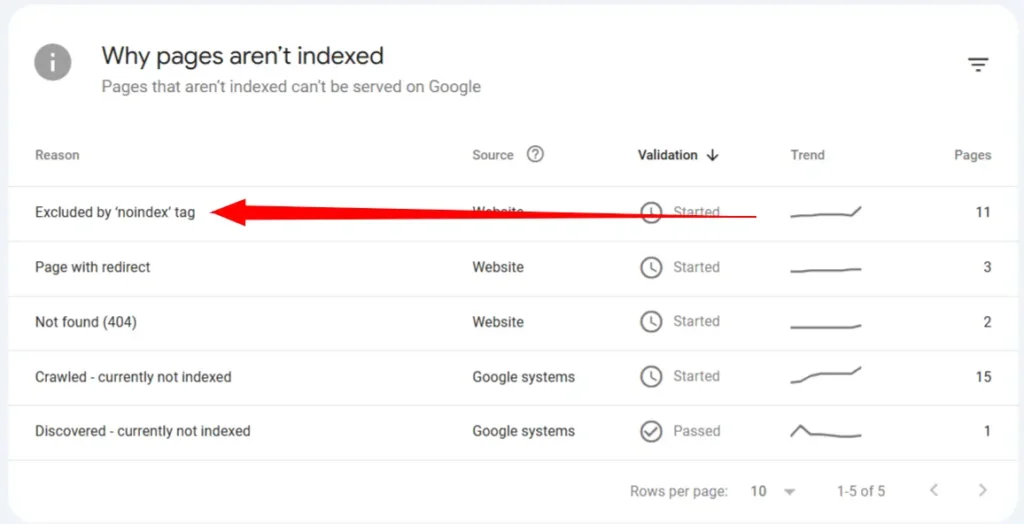
How To Detect The Sitemap X-Robot Tag: noindex?
If you navigate to “View page source” of your sitemap url, the code you see is for you as a human viewer. As search engines are not human, X-Robot is the html tag that defines if the robot should index this element or not.
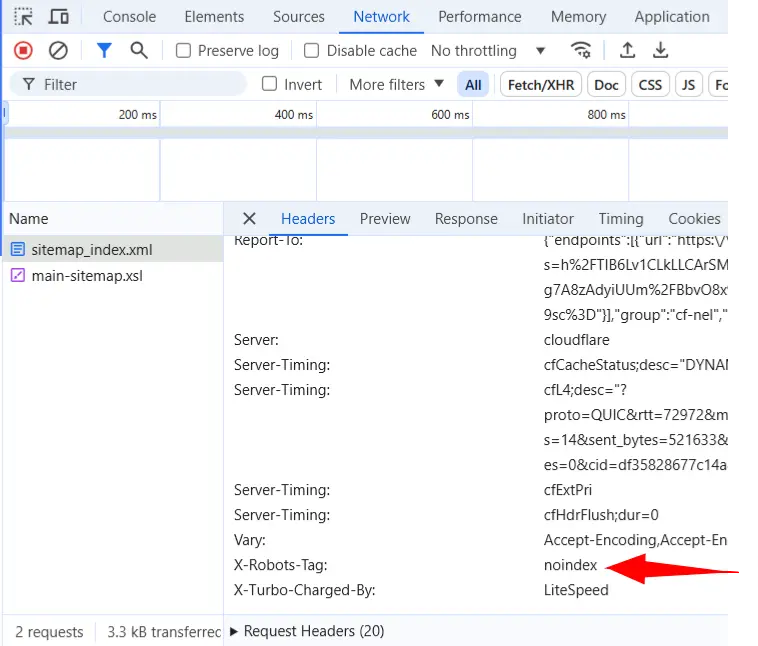
This happens form the server side therefore to detect this issue you can use Google Inspect tool and by default this should be as X-Robots-Tag:index.
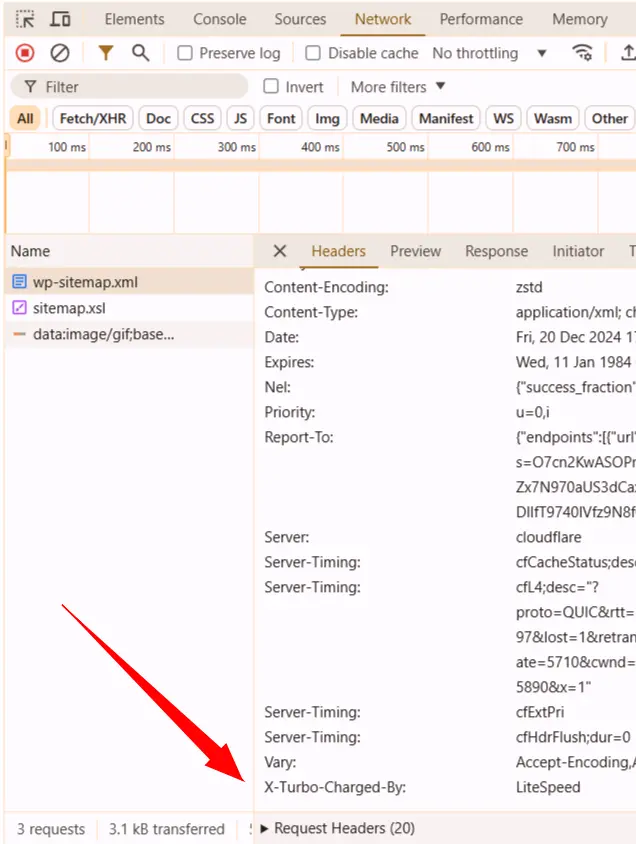
Navigate to the sitemap url then find the Network tab and hit reload in the sitemap url again. X-Robots-Tag will be visible in the Response Headers tab into the .xml file or .xsl files of your sitemap.
How To Fix Sitemap X-Robots-Tag:noindex Problem?
Now that you have detected the problem you can simply remove the current sitemap of your website and create a new one. It looks like a simple task but you have to consider the SEO factors if the website is already indexed in search engines like Google.
As the website has already submitted a sitemap to Google through Search Console, you have to remove those sitemaps from Search Console and resubmit the new sitemap.
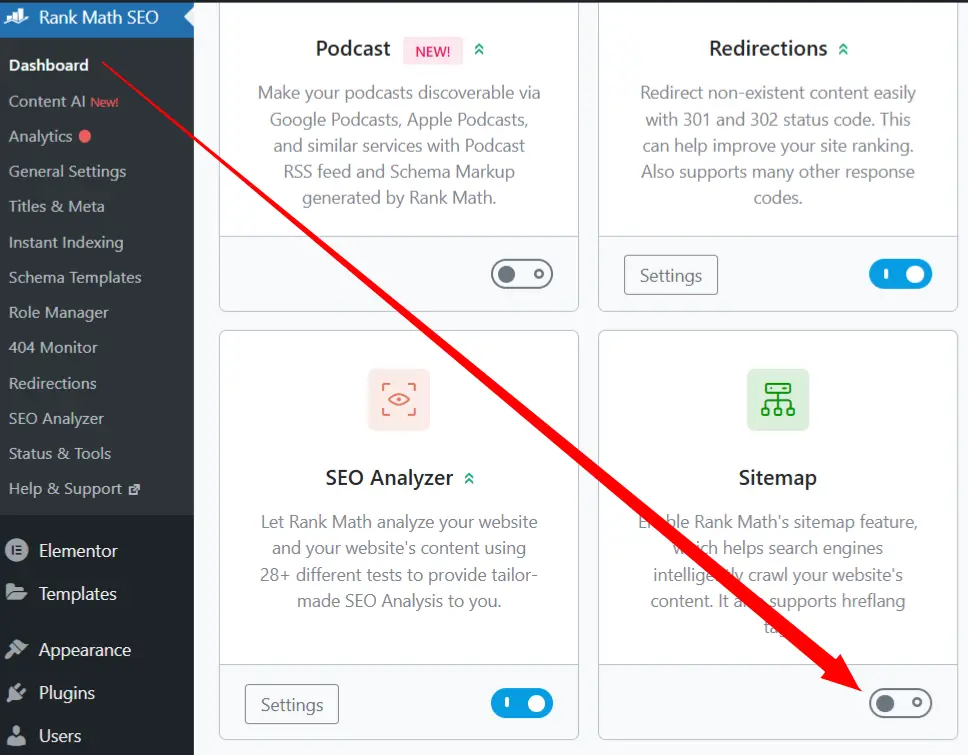
The website I was working on used Rank Math SEO plugin to dynamically create sitemaps, I had to disable that from the Rank Math Dashboard and turned off the sitemap feature.
Remove Sitemaps from Google Search Console:
To remove sitemaps from Google Search Console dashboard navigate to Sitemaps panel and see how many sitemaps are successfully fetched by Google. You can ignore the sitemaps which are anything but NOT successful and marked as red.
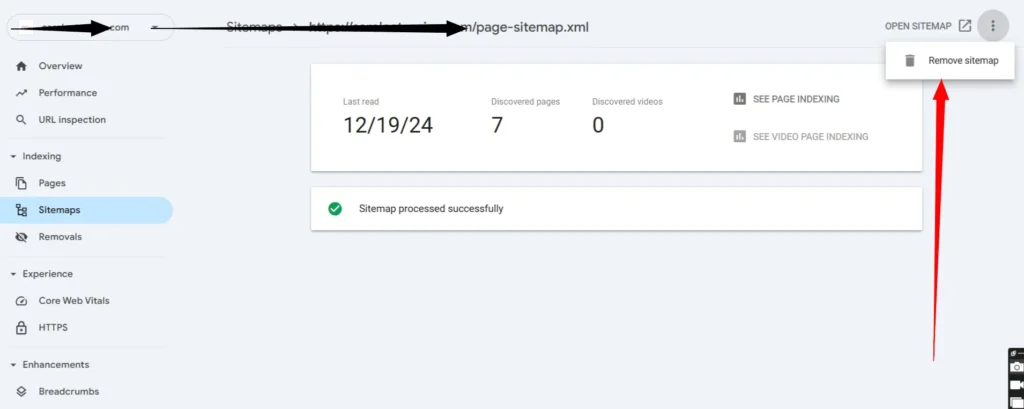
Click on each of the successfully fetched sitemaps where in the right corner you will find four dots. Click there and you will find the Remove sitemap option. Do this action for every sitemap urls of your website.
Resubmit the New Sitemap and Validate:
By now all of your existing sitemaps should be removed and now you have to submit a new sitemap to the search console of your website. There are lots of ways to create a sitemap for a WordPress website and it completely depends on your preferences and requirements.
I just followed the standard procedures to install a plugin which solves my problem and created a new sitemap for my website. Once you have done that, it’s time to Validate the X-Robots-Tag:noindex issue.
To do that, you just have to repeat the process I have shown in the detection process. Navigate to the sitemap url then find the Network tab and hit reload.
Then I navigated to the Google Search Console dashboard and submitted the new sitemap url, you should also do that. This process typically takes some time depending on the number of elements included in the sitemap of that website.
If you follow the steps properly I have mentioned, by now your Sitemap X-Robots-Tag:noindex problem should be fixed. If NOT you can comment below to let me know what went wrong in your case.
